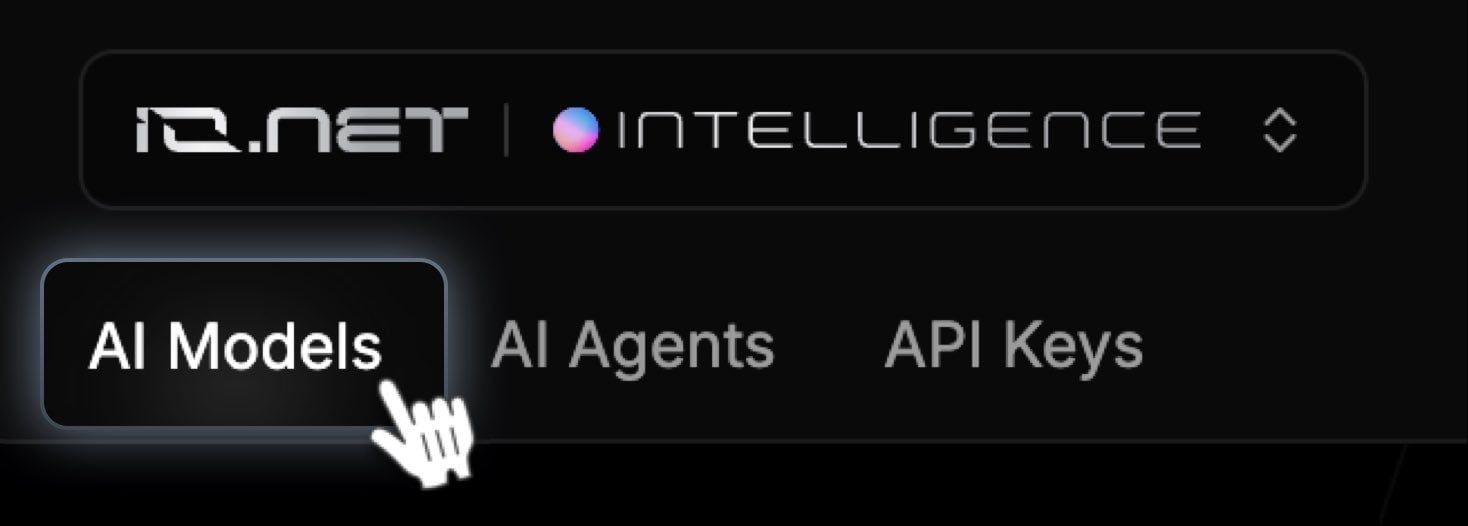
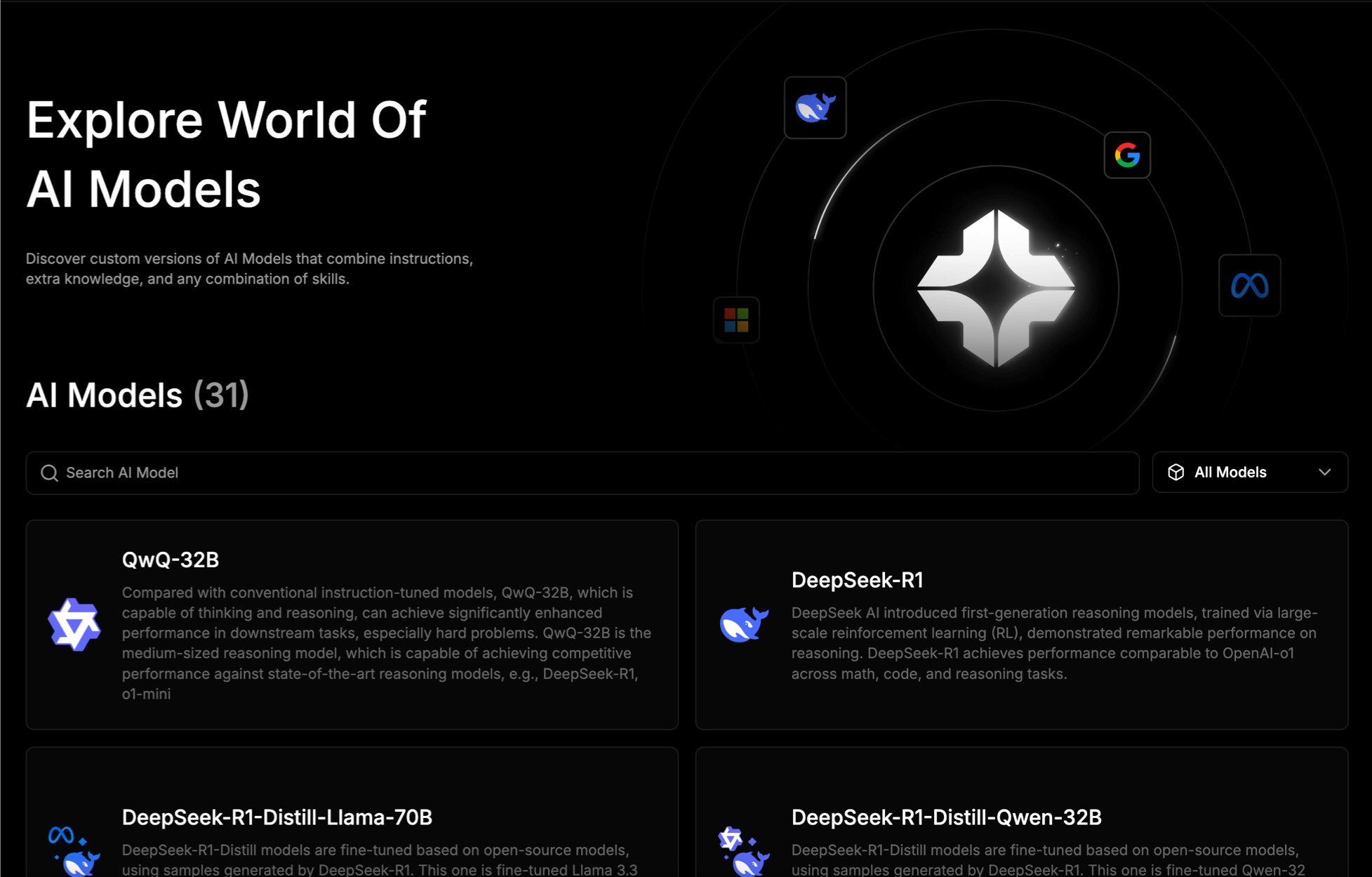
What you can do on the dashboard:
- Use the search field to find a specific model for your needs.
- Browse a list of models, each with a detailed description, developer information, and capability type
Popular AI Models
For a full list of models, visit the AI Models section in your dashboard.
Testing AI Model
Before using any of our AI models in your project, you can perform real-time testing directly from the dashboard. This allows you to evaluate the model’s performance and ensure it meets your requirements.How to Test an AI Model
-
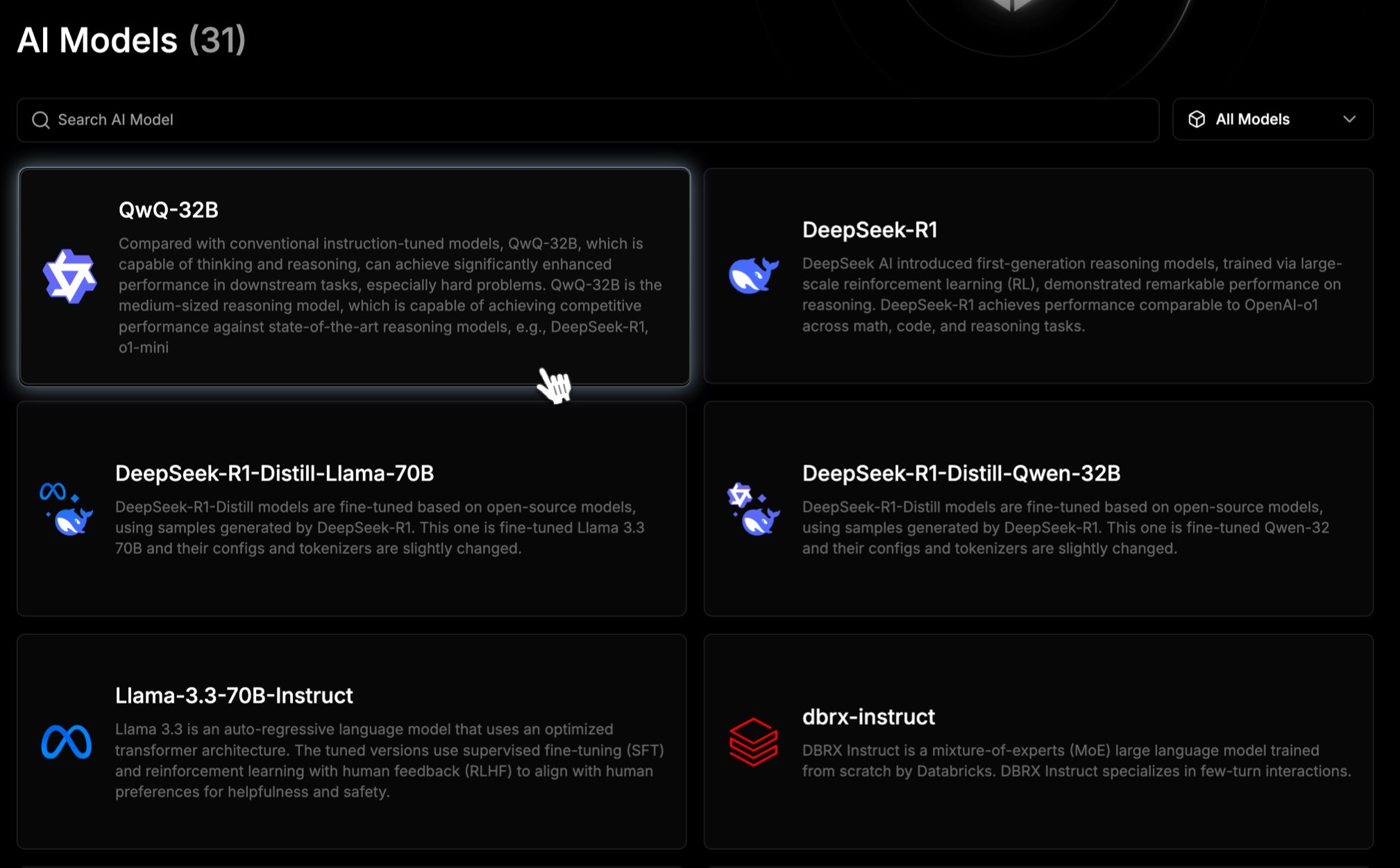
Select a Model:
- Navigate to the AI Models dashboard.
-
Select the model you want to test by clicking on it.
-
Start Testing:
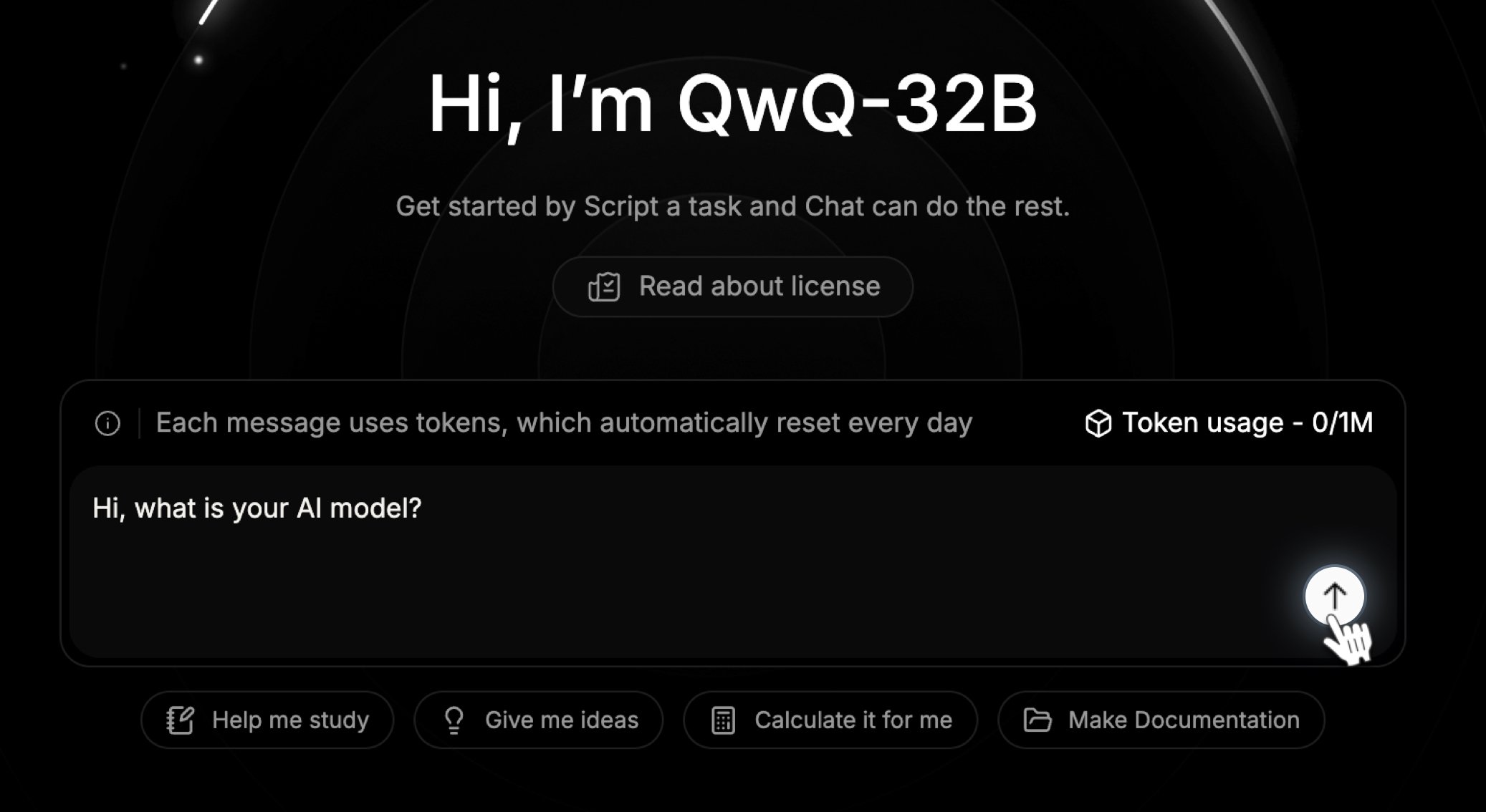
- On the AI model chat page, type your question or input into the centered text field.
-
Click the arrow icon to submit your query.
Note: Below the request field, you can see the Used Free Token value and the Available Free Token balance. For more details on Free Tokens for specific AI models, visit our API Reference page.

-
Interact with the Model:
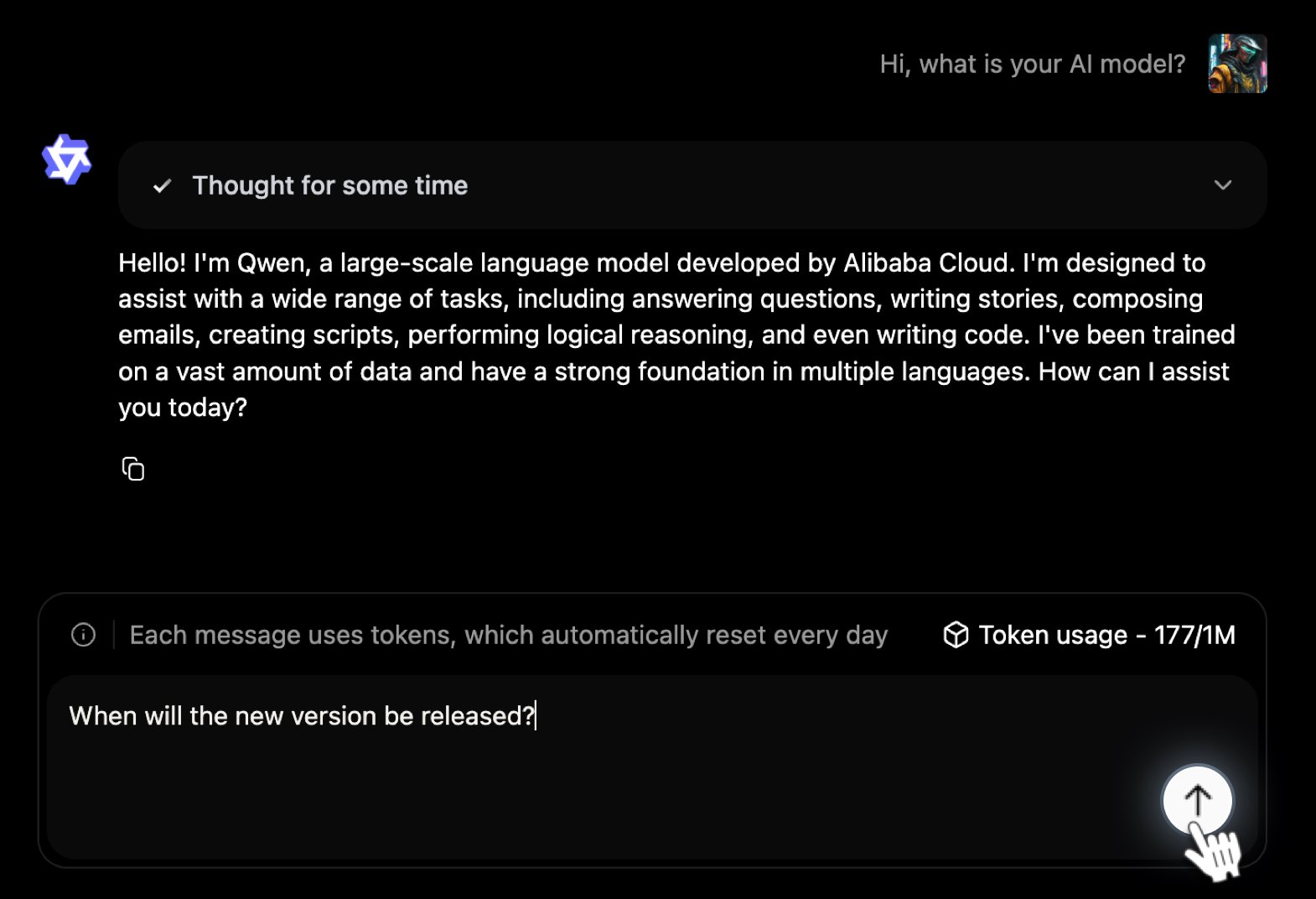
- The AI model will respond, starting a conversation. You can continue testing by asking additional questions or providing more input.
-
Compare different models to find the one that best suits your needs.
Managing Chats
-
View Previous Chats:
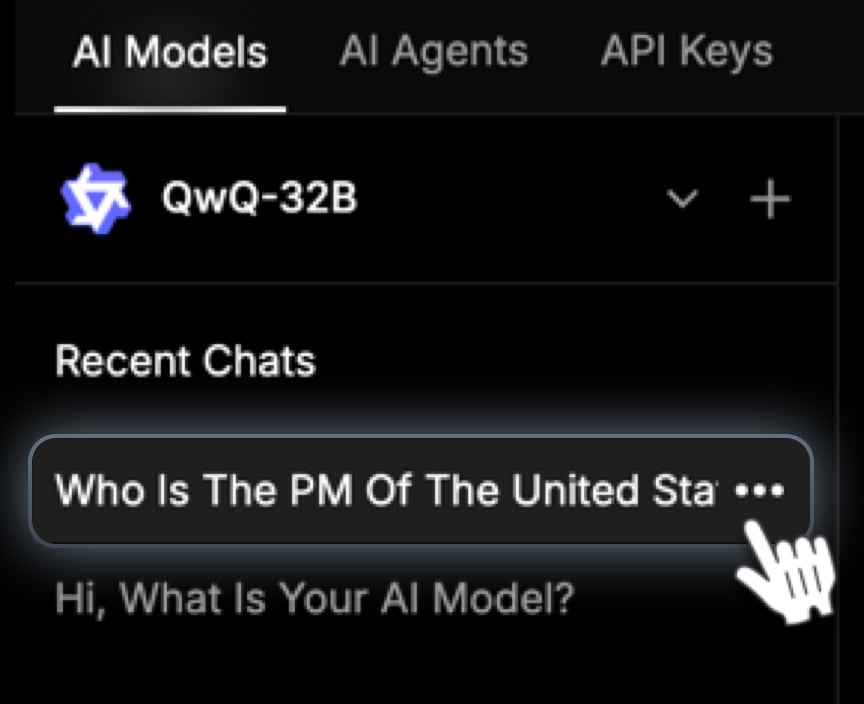
- On the right-hand side, you can manage your previously created chats with different AI models.
- Click on any chat to dive deeper into the conversation.
-
Create or Remove Chats:
- Create a new chat by clicking the Start New Chat button.
- Remove unnecessary chats to keep your workspace organized.
Switching Between Models
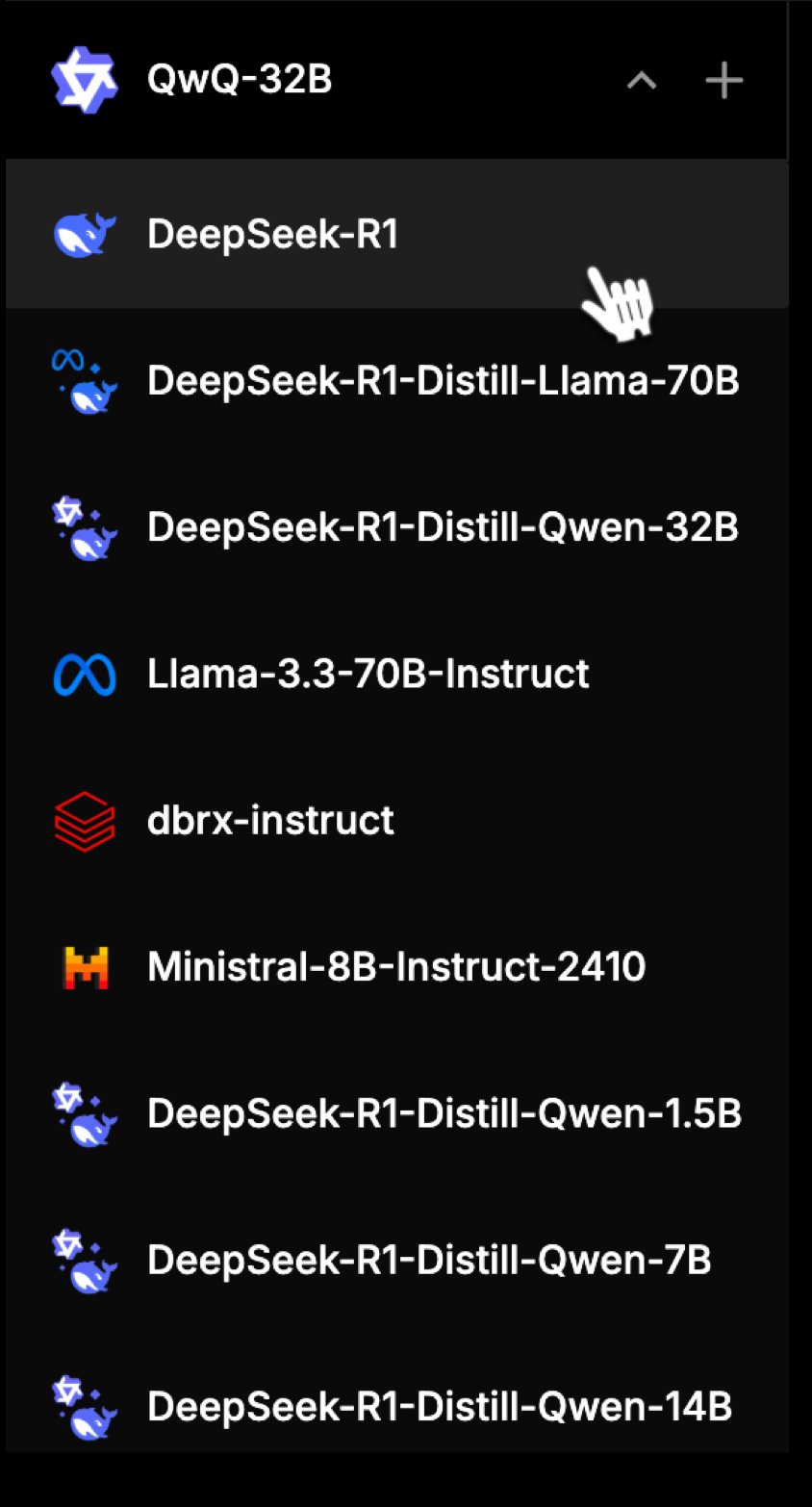
- Next to the Start New Chat button, you’ll find a dropdown menu with the currently selected model.
- Click the dropdown to switch to a different AI model and start a new conversation with it.